10 Things a Professional Organizer Would Get Rid Of (msn.com)
Install Ring Battery Doorbell +
Installing your Ring Battery Doorbell Plus – Ring Help
How To Install Ring Battery Doorbell Plus – YouTube
Install your doorbell and connect to an existing chime
Your battery doorbell can be hardwired to work with your home’s existing chime.
Before you start installing your doorbell, make sure to shut off power at the breaker. If you’re not sure which breaker controls your doorbell, turn off your home’s master breaker or contact an electrician.
Once power is turned off, remove your existing doorbell button from the wall and disconnect the wires. Your Ring doorbell is compatible with doorbell systems supplying 8 to 24 VAC at 50/60Hz, 5VA to 40VA.
CAUTION! You’ll be working with electrical wires during the install process. If you are uncomfortable or inexperienced with doing so, consult with a licensed electrician. Do not wire your Ring doorbell to a DC-powered intercom system or other DC power source.
1. Optional: Install the corner mount.
If you’re installing a corner mount, remove the corner bracket screws from Bag C.
Pull your home’s existing wires through the center of the corner mount before installing on the wall.
If installing on a wood surface, screw the bracket directly into the wall.
If installing on a masonry surface, mark two screw holes using the bracket as a guide.
Drill pilot holes using a 1/4″ drill bit. Insert the wall anchors from Bag C, then drive the medium bracket screws through the bracket into the wall anchors.
WARNING! Only use the included corner bracket screws when securing the corner bracket.
CAUTION! Do not drill or drive screws into your home’s electrical wiring.
2. Secure the wires to the terminals.
Loop each doorbell wire around the screw terminals on the back of the doorbell, then tighten to secure. It doesn’t matter which wire connects to which screw.
If the wires are too short to reach the doorbell, use the wire extenders with the wire nuts found in Bag D.
At the end, feed all the wires (and wire nuts and extenders if used) back into your wall.
3. Mount your doorbell to the wall or corner bracket.
Remove the short mounting screws from Bag A.
If installing on a wood surface, screw the doorbell directly into the wall.
If installing on a masonry surface, mark four screw holes using the doorbell as a guide. Drill pilot holes using a 1/4″ drill bit. Insert the wall anchors, the drive the short mounting screws through the mounting plate into the wall anchors.
If using a corner mount, use the short bracket screws from Bag C to secure your doorbell to the bracket.
WARNING! Only use the included corner bracket screws when securing the corner bracket.
WARNING! Only use the included wall mounting screws when securing the doorbell.
CAUTION! Do not drill or drive screws into your home’s electrical wiring.
4. Insert the battery and secure the faceplate.
CAUTION! If you use the wrong screws to secure the faceplate, you could damage the battery during installation, create a fire hazard, and be seriously injured.
DO NOT USE any screw other than the included short security screws when securing the faceplate. Lastly, use the included screwdriver to insert and tighten one of the security screws from Bag B.
Your Ring doorbell is now ready to use.
Homemade weed killer
2 cups epsom salt
1 gal white vinegar (5% solution)
1/4 cup Dawn dish soap
If I get Dementia
● If I get dementia, I want my friends and family to embrace my reality. If I think my spouse is still alive, or if I think we’re visiting my parents for dinner, let me believe those things. I’ll be much happier for it.
● If I get dementia, don’t argue with me about what is true for me versus what is true for you.
● If I get dementia, and I am not sure who you are, do not take it personally. My timeline is confusing to me.
● If I get dementia, and can no longer use utensils, do not start feeding me. Instead, switch me to a finger-food diet, and see if I can still feed myself.
● If I get dementia, and I am sad or anxious, hold my hand and listen. Do not tell me that my feelings are unfounded.
● If I get dementia, I don’t want to be treated like a child. Talk to me like the adult that I am.
● If I get dementia, I still want to enjoy the things that I’ve always enjoyed. Help me find a way to exercise, read, and visit with friends.
● If I get dementia, ask me to tell you a story from my past.
● If I get dementia, and I become agitated, take the time to figure out what is bothering me.
● If I get dementia, treat me the way that you would want to be treated.
● If I get dementia, make sure that there are plenty of snacks for me in the house. Even know if I don’t eat I get angry, and if I have dementia, I may have trouble explaining what I need.
● If I get dementia, don’t talk about me as if I’m not in the room.
● If I get dementia, don’t feel guilty if you cannot care for me 24 hours a day, 7 days a week. It’s not your fault, and you’ve done your best. Find someone who can help you, or choose a great new place for me to live.
● If I get dementia, and I live in a dementia care community, please visit me often.
● If I get dementia, don’t act frustrated if I mix up names, events, or places. Take a deep breath. It’s not my fault.
● If I get dementia, make sure I always have my favorite music playing within earshot.
● If I get dementia, and I like to pick up items and carry them around, help me return those items to their original place.
● If I get dementia, don’t exclude me from parties and family gatherings.
● If I get dementia, know that I still like receiving hugs or handshakes.
● If I get dementia, remember that I am still the person you know and love.
Microsoft PowerToys: Utilities to customize Windows
https://learn.microsoft.com/en-us/windows/powertoys/
In this article
Show 5 more
Microsoft PowerToys is a set of utilities for power users to tune and streamline their Windows experience for greater productivity.
Processor support
- x64: Supported
- ARM64: Supported
Current PowerToy utilities
The currently available utilities include:
Always on Top
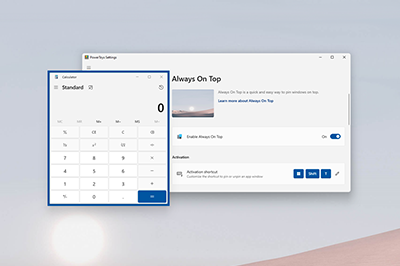
Always on Top enables you to pin windows on top of other windows with a quick key shortcut (⊞ Win+Ctrl+T).
PowerToys Awake
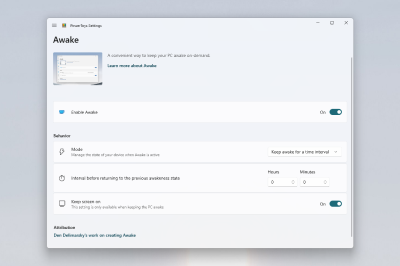
PowerToys Awake is designed to keep a computer awake without having to manage its power & sleep settings. This behavior can be helpful when running time-consuming tasks, ensuring that the computer does not go to sleep or turns off its screens.
Color Picker
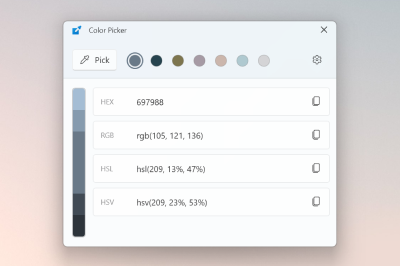
ColorPicker is a system-wide color picking utility activated with Win+Shift+C. Pick colors from any currently running application, the picker automatically copies the color into your clipboard in a set format. Color Picker contains an editor that shows a history of previously picked colors, allows you to fine-tune the selected color and to copy different string representations. This code is based on Martin Chrzan’s Color Picker.
FancyZones
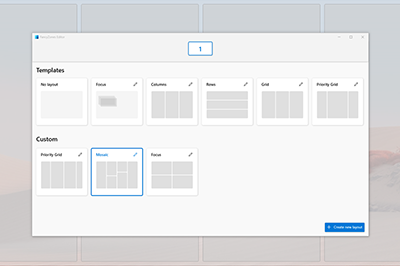
FancyZones is a window manager that makes it easy to create complex window layouts and quickly position windows into those layouts.
File Explorer add-ons
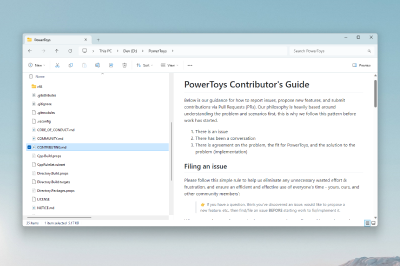
File Explorer add-ons enable Preview pane and thumbnail rendering in File Explorer to display a variety of file types. To enable the Preview pane, select the “View” tab in File Explorer, then select “Preview Pane”.
File Locksmith
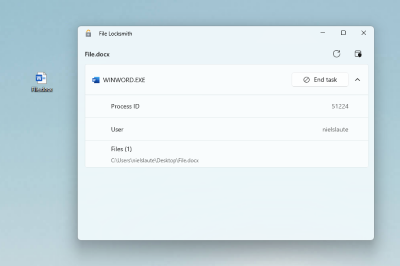
File Locksmith is a Windows shell extension for checking which files are in use and by which processes. Right-click on one or more selected files in File Explorer, and then select What’s using this file? from the menu.
Hosts file editor
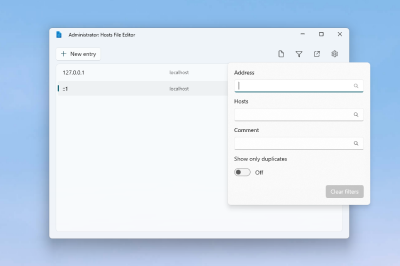
Hosts file editor is a convenient way to edit the ‘Hosts’ file that contains domain names and matching IP addresses, acting as a map to identify and locate hosts on IP networks.
Image Resizer

Image Resizer is a Windows Shell extension for quickly resizing images. With a simple right click from File Explorer, resize one or many images instantly. This code is based on Brice Lambson’s Image Resizer.
Keyboard Manager
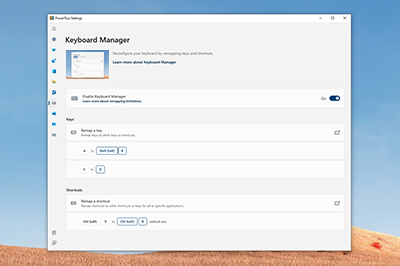
Keyboard Manager allows you to customize the keyboard to be more productive by remapping keys and creating your own keyboard shortcuts.
Mouse utilities

Mouse utilities add functionality to enhance your mouse and cursor. With Find My Mouse, quickly locate your mouse’s position with a spotlight that focuses on your cursor. This feature is based on source code developed by Raymond Chen. Mouse Highlighter displays visual indicators when the left or right mouse buttons are clicked. Mouse Pointer Crosshairs draws crosshairs centered on the mouse pointer.
Mouse without Borders
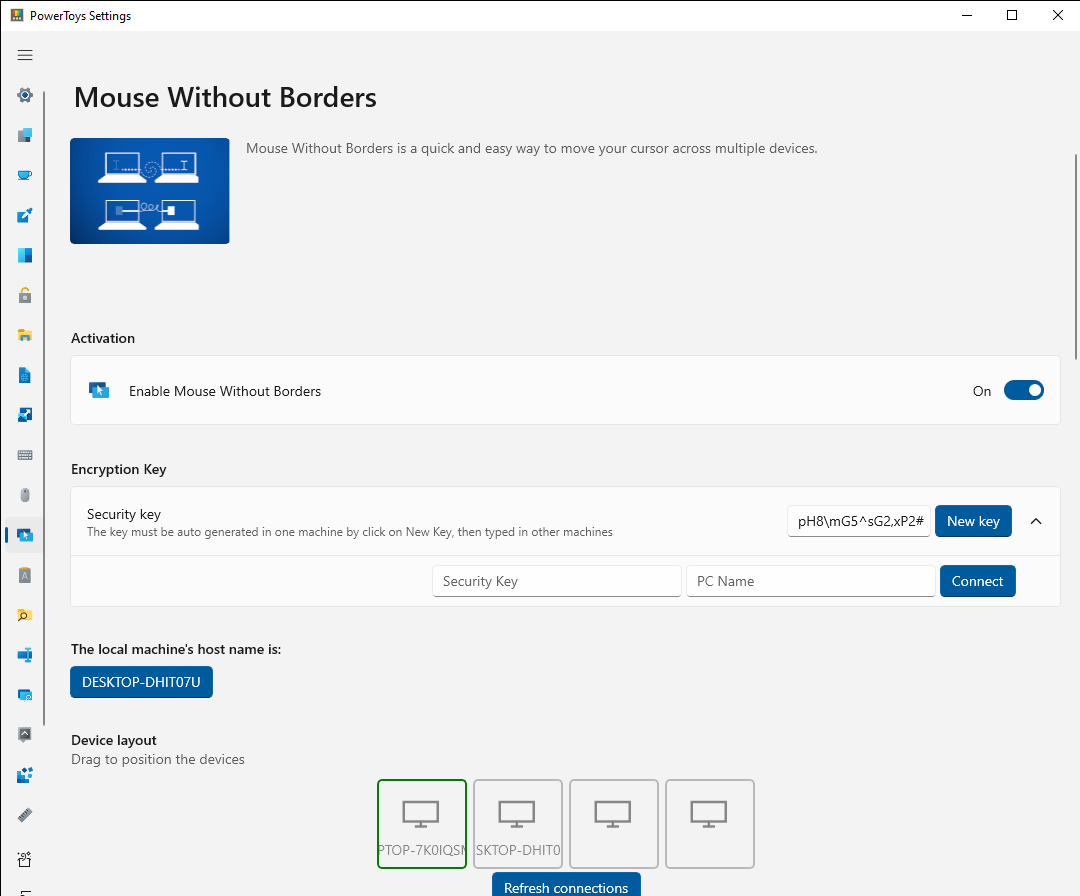
Mouse without Borders enables you to interact with multiple computers from the same keyboard and mouse, sharing clipboard contents and files between the machines seamlessly.
Paste as Plain Text
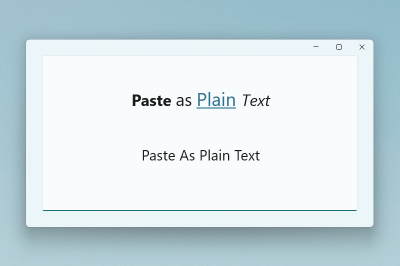
Paste as Plain Text allows you to paste text from your clipboard, excluding text-formatting, with a quick key shortcut (Ctrl+⊞ Win+V).
Peek
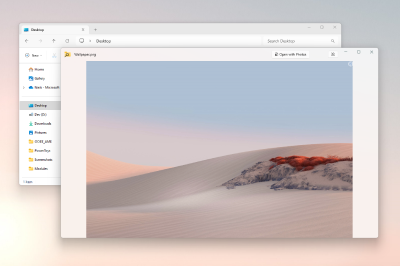
Peek allows you to preview file content without the need to open multiple applications or interrupt your workflow. Just select the file and use the shortcut (Ctrl+Space)
PowerRename
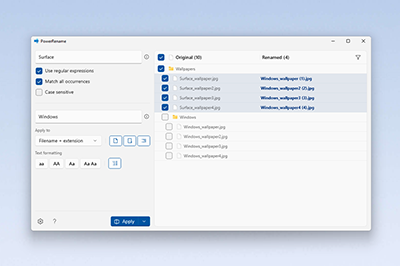
PowerRename enables you to perform bulk renaming, searching and replacing file names. It includes advanced features, such as using regular expressions, targeting specific file types, previewing expected results, and the ability to undo changes. This code is based on Chris Davis’s SmartRename.
Quick Accent
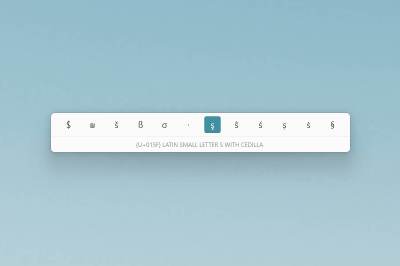
Quick Accent is an alternative way to type accented characters, useful for when a keyboard doesn’t support that specific accent with a quick key combo.
Registry Preview
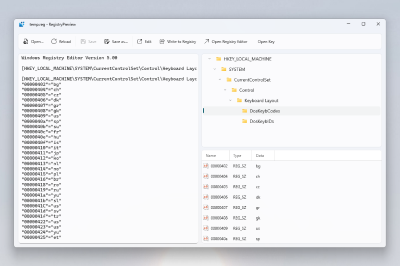
Registry Preview is a utility to visualize and edit Windows Registry files.
PowerToys Run
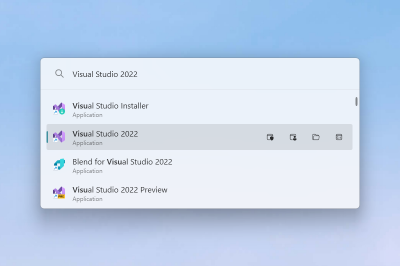
PowerToys Run can help you search and launch your app instantly. To open, use the shortcut Alt+Space and start typing. It is open source and modular for additional plugins.
Screen Ruler
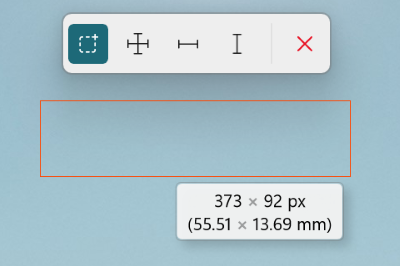
Screen Ruler allows you to quickly measure pixels on your screen based with image edge detection. To activate, use the shortcut ⊞ Win+Shift+M. This was inspired by Pete Blois’s Rooler.
Shortcut Guide
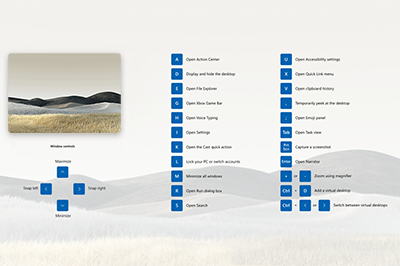
Windows key shortcut guide appears when you press ⊞ Win+Shift+/ (or as we like to think, ⊞ Win+?) and shows the available shortcuts for the current state of the desktop. You can also change this setting and press and hold ⊞ Win.
Text Extractor
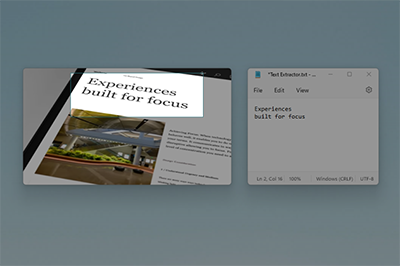
Text Extractor is a convenient way to copy text from anywhere on your screen. To activate, use the shortcut ⊞ Win+Shift+T. This code is based on Joe Finney’s Text Grab.
Video Conference Mute

Video Conference Mute is a quick way to globally “mute” both your microphone and camera using ⊞ Win+Shift+Q while on a conference call, regardless of the application that currently has focus.
Languages
Currently, PowerToys is available in the following languages: Chinese (simplified), Chinese (traditional), Czech, Dutch, English, French, German, Hungarian, Italian, Japanese, Korean, Polish, Portuguese, Portuguese (Brazil), Russian, Spanish, Turkish.
Note that new elements of the app might not yet be translated in the first version release.
PowerToys video walk-through
In this video, Clint Rutkas (PM for PowerToys) walks through how to install and use the various utilities available, in addition to sharing some tips, info on how to contribute, and more.
Known issues
Search known issues or file a new issue in the Issues tab of the PowerToys repository on GitHub. If you don’t find the issue you are experiencing, you can Report a Bug on the PowerToys product repo.
Contribute to PowerToys (Open Source)
PowerToys welcomes your contributions! The PowerToys development team is excited to partner with the power user community to build tools that help users get the most out of Windows. There are a variety of ways to contribute:
- Write a tech spec
- Submit a design concept or recommendation
- Contribute to documentation
- Identify and fix bugs in the source code
- Code new features and PowerToy utilities
Before starting work on a feature that you would like to contribute, read the Contributor’s Guide. The PowerToys team will be happy to work with you to figure out the best approach, provide guidance and mentorship throughout feature development, and help avoid any wasted or duplicate effort.
PowerToys release notes
PowerToys release notes are listed on the install page of the GitHub repo. For reference, you can also find the Release checklist on the PowerToys wiki.
PowerToys history
Inspired by the Windows 95 era PowerToys project, this reboot provides power users with ways to squeeze more efficiency out of the Windows shell and customize it for individual workflows. An overview of the original PowerToys can be found here: Using Windows 95 PowerToys.
PowerToys roadmap
PowerToys is a rapid-incubation, open source team aimed at providing power users ways to squeeze more efficiency out of the Windows shell and customize it for individual workflows. Work priorities will consistently be examined, reassessed, and adjusted with the aim of improving our users productivity.
Techsmith Academy-Camtasia Videos
| How to Add Text to a VideoCamtasia on YouTubeGet step-by-step instructions for adding text to your videos and customizing it with masking, corner rounding, and media mattes.Watch the Video |
|---|
Mayo Clinic – Dizziness
Dizziness – Symptoms and causes – Mayo Clinic
Overview
Dizziness is a term used to describe a range of sensations, such as feeling faint, woozy, weak or unsteady. Dizziness that creates the false sense that you or your surroundings are spinning or moving is called vertigo.
Dizziness is one of the more common reasons adults visit their doctors. Frequent dizzy spells or constant dizziness can significantly affect your life. But dizziness rarely signals a life-threatening condition.
Treatment of dizziness depends on the cause and your symptoms. It’s usually effective, but the problem may recur.
Products & Services
Show more products from Mayo Clinic
Symptoms
People experiencing dizziness may describe it as any of a number of sensations, such as:
- A false sense of motion or spinning (vertigo)
- Lightheadedness or feeling faint
- Unsteadiness or a loss of balance
- A feeling of floating, wooziness or heavy-headedness
These feelings may be triggered or worsened by walking, standing up or moving your head. Your dizziness may be accompanied by nausea or be so sudden or severe that you need to sit or lie down. The episode may last seconds or days and may recur.
When to see a doctor
Generally, see your doctor if you experience any recurrent, sudden, severe, or prolonged and unexplained dizziness or vertigo.
Get emergency medical care if you experience new, severe dizziness or vertigo along with any of the following:
- Sudden, severe headache
- Chest pain
- Difficulty breathing
- Numbness or paralysis of arms or legs
- Fainting
- Double vision
- Rapid or irregular heartbeat
- Confusion or slurred speech
- Stumbling or difficulty walking
- Ongoing vomiting
- Seizures
- A sudden change in hearing
- Facial numbness or weakness
From Mayo Clinic to your inbox
Sign up for free, and stay up to date on research advancements, health tips and current health topics, like COVID-19, plus expertise on managing health. Click here for an email preview.EmailLearn more about Mayo Clinic’s use of data.Subscribe!
Causes
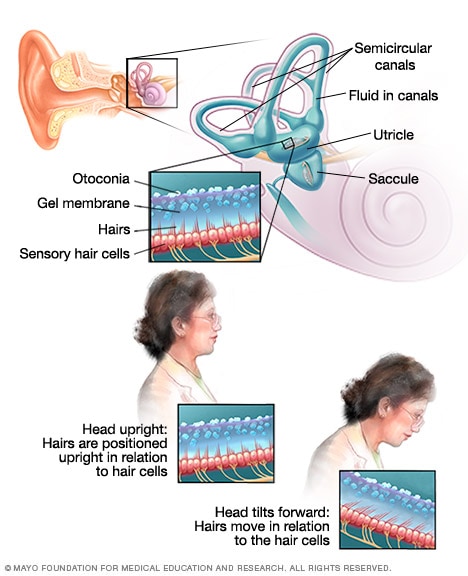 Inner ear and balanceEnlarge image
Dizziness has many possible causes, including inner ear disturbance, motion sickness and medication effects. Sometimes it’s caused by an underlying health condition, such as poor circulation, infection or injury.
The way dizziness makes you feel and your triggers provide clues for possible causes. How long the dizziness lasts and any other symptoms you have also help pinpoint the cause.
Inner ear problems that cause dizziness (vertigo)
Your sense of balance depends on the combined input from the various parts of your sensory system. These include your:
- Eyes, which help you determine where your body is in space and how it’s moving
- Sensory nerves, which send messages to your brain about body movements and positions
- Inner ear, which houses sensors that help detect gravity and back-and-forth motion
Vertigo is the false sense that your surroundings are spinning or moving. With inner ear disorders, your brain receives signals from the inner ear that aren’t consistent with what your eyes and sensory nerves are receiving. Vertigo is what results as your brain works to sort out the confusion.
- Benign paroxysmal positional vertigo (BPPV). This condition causes an intense and brief but false sense that you’re spinning or moving. These episodes are triggered by a rapid change in head movement, such as when you turn over in bed, sit up or experience a blow to the head. BPPV is the most common cause of vertigo.
- Infection. A viral infection of the vestibular nerve, called vestibular neuritis, can cause intense, constant vertigo. If you also have sudden hearing loss, you may have labyrinthitis.
- Meniere’s disease. This disease involves the excessive buildup of fluid in your inner ear. It’s characterized by sudden episodes of vertigo lasting as long as several hours. You may also experience fluctuating hearing loss, ringing in the ear and the feeling of a plugged ear.
- Migraine. People who experience migraines may have episodes of vertigo or other types of dizziness even when they’re not having a severe headache. Such vertigo episodes can last minutes to hours and may be associated with headache as well as light and noise sensitivity.
Circulation problems that cause dizziness
You may feel dizzy, faint or off balance if your heart isn’t pumping enough blood to your brain. Causes include:
- Drop in blood pressure. A dramatic drop in your systolic blood pressure — the higher number in your blood pressure reading — may result in brief lightheadedness or a feeling of faintness. It can occur after sitting up or standing too quickly. This condition is also called orthostatic hypotension.
- Poor blood circulation. Conditions such as cardiomyopathy, heart attack, heart arrhythmia and transient ischemic attack could cause dizziness. And a decrease in blood volume may cause inadequate blood flow to your brain or inner ear.
Other causes of dizziness
- Neurological conditions. Some neurological disorders — such as Parkinson’s disease and multiple sclerosis — can lead to progressive loss of balance.
- Medications. Dizziness can be a side effect of certain medications — such as anti-seizure drugs, antidepressants, sedatives and tranquilizers. In particular, blood pressure lowering medications may cause faintness if they lower your blood pressure too much.
- Anxiety disorders. Certain anxiety disorders may cause lightheadedness or a woozy feeling often referred to as dizziness. These include panic attacks and a fear of leaving home or being in large, open spaces (agoraphobia).
- Low iron levels (anemia). Other signs and symptoms that may occur along with dizziness if you have anemia include fatigue, weakness and pale skin.
- Low blood sugar (hypoglycemia). This condition generally occurs in people with diabetes who use insulin. Dizziness (lightheadedness) may be accompanied by sweating and anxiety.
- Carbon monoxide poisoning. Symptoms of carbon monoxide poisoning are often described as “flu-like” and include headache, dizziness, weakness, upset stomach, vomiting, chest pain and confusion.
- Overheating and dehydration. If you’re active in hot weather or if you don’t drink enough fluids, you may feel dizzy from overheating (hyperthermia) or from dehydration. This is especially true if you take certain heart medications.
Risk factors
Factors that may increase your risk of getting dizzy include:
- Age. Older adults are more likely to have medical conditions that cause dizziness, especially a sense of imbalance. They’re also more likely to take medications that can cause dizziness.
- A past episode of dizziness. If you’ve experienced dizziness before, you’re more likely to get dizzy in the future.
Complications
Dizziness can increase your risk of falling and injuring yourself. Experiencing dizziness while driving a car or operating heavy machinery can increase the likelihood of an accident. You may also experience long-term consequences if an existing health condition that may be causing your dizziness goes untreated.
HP OfficeJet 86xx Printers – Paper Jam Error
HP OfficeJet 86xx Printers – Paper Jam Error | HP® Customer Support
NOTE:
Paper jams can be real or false. The printer might report a paper jam even when there is no jammed paper. The following steps apply to both real and false paper jams.
Step 1: Turn the printer off, and then on again
Turning the printer off and then on resets the carriage.
- Press the Power button to turn off the printer. If the printer does not turn off, disconnect the power cord from the rear of the printer.
- Wait 60 seconds.
- Reconnect the power cord to the rear of the printer.
- Press the Power button to turn on the printer.NOTE: The printer might go through a warm-up period, which might last several minutes. Wait until the warm-up period completes before you continue.
Try to print. If the error persists, continue to the next step.
Step 2: Look for jammed paper
Paper jams can occur in multiple areas of the printer. If you cannot find the paper jam in one area, continue to the next area until you locate the jam.
CAUTION:
Trying to clear a paper jam from the front of the printer can damage the print mechanism. Gain access to and clear paper jams through the rear of the printer whenever possible.
Clear jammed paper from the rear of the printer
Clear jammed paper from Tray 1
Clear jammed paper from the Tray 2 area
Clear jammed paper from the automatic document feeder (ADF)
If you have checked and removed any jammed paper from each printer area and the error persists, continue to the next step.
Step 2: Make sure the carriage can move freely
Make sure the carriage moves freely across the width of the printer.
- Turn on the printer.
- With the printer turned on, disconnect the power cord from the rear of the printer, and then unplug the power cord from the power source or electrical outlet. WARNING: To avoid the risk of electrical shock, you must unplug the power cord before moving the carriage by hand and resetting the paper feed mechanism.
- Disconnect the USB or Ethernet cable from the rear of the printer, if you have a cable connection to the printer.
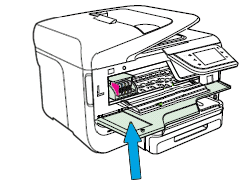
- Place your fingers into the slot on the left side of the printer, and then pull to open the cartridge access door.
- Slot on the side of the printer
- Wait until the carriage is idle and silent before you continue.
- Use a flashlight to check for torn pieces of paper that might remain inside the printer. If any torn pieces of paper remain inside the printer, more jams might occur.

- Gently pull out any jammed or torn paper from inside the printer.
- Reach into the ink cartridge access area, and then manually move the carriage.
- If the carriage is stuck on the right side of the printer, move the carriage to the left side of the printer.
- If the carriage is stuck on the left side of the printer, move the carriage to the right side of the printer.
- If the carriage is stuck in the middle of the printer, move the carriage to the right side of the printer.
- Remove any loose or torn pieces of paper.
- Make sure the carriage can move freely across the width of the printer by gently pushing the carriage to the left, and then to the right.
- Close the ink cartridge access door.
- Reconnect the power cord to the rear of the printer, and then turn on the printer.
- Reconnect the USB or Ethernet cable.
Try to print. If the error persists, continue to the next step.
Step 3: Clean the paper feed rollers
Dust, paper fiber, and other debris might accumulate on the paper feed rollers and cause paper jams and paper feed issues. Clean the rollers inside the printer, and then try to print again.
Clean the rollers from inside the cartridge access area
Clean the rollers inside the rear of the printer
Clean the rollers in the ADF
Clean the rollers in the duplexer
Step 4: Reset the printer
Sometimes a paper jam error persists even though there is no jammed paper (false paper jam). Reset the printer, which might clear a false paper jam error, and then try to print again.
- With the printer turned on, disconnect the power cord from the printer.
- Unplug the power cord from the power source.
- Wait 60 seconds.
- Reconnect the power cord to a wall outlet and to the printer.NOTE: HP recommends plugging the printer directly into a wall outlet.
Try to print. If the error persists, continue to the next step.
Step 5: Service the printer
Service or replace your HP product if the issue persists after completing all the preceding steps.
Go to Contact HP Customer Support to schedule a product repair or replacement. If you are in Asia Pacific, you will be directed to a local service center in your area.
To confirm your warranty status, go to HP Product Warranty Check. Repair fees might apply for out-of-warranty products.
JP Morgan acquires First Republic Bank
US central bank officials have also blamed changes made during the presidency of Donald Trump that have watered down the oversight of mid-sized banks such as SVB and First Republic.
JP Morgan is to acquire most of the failed California bank First Republic, in a takeover brokered by regulators as the US races to contain a series of banking failures that has echoes of the 2008 global financial crisis.
After weekend talks to prevent a further escalation of the US banking crisis, the Federal Deposit Insurance Corporation (FDIC) confirmed that First Republic had collapsed and would be taken over by JP Morgan. The regulator is providing $50bn (£39.9bn) of financing as part of the deal.
America’s largest bank will acquire “all of the deposits and substantially all of the assets” of First Republic, winning out over as many as five rivals reportedly in the running.
JP Morgan’s chief executive, Jamie Dimon, said: “Our government invited us and others to step up, and we did. This acquisition modestly benefits our company overall, it is accretive to shareholders, it helps further advance our wealth strategy, and it is complementary to our existing franchise.”
First Republic is the third US lender to collapse this year, after Silicon Valley Bank (SVB) and Signature Bank, a sequence that has prompted concerns about contagion last experienced in the 2008 global financial crisis.
Related video: First Republic Bank to Be Sold to JPMorgan (Bloomberg)
javascript:void(0)

Growing anxiety about the potential for the economic setbacks to spread, as customers pull deposits from any US lender perceived as weak, has forced the Federal Reserve to launch emergency measures to stabilise the markets.
A group of 11 Wall Street banks had pumped $30bn into First Republic last month in an attempt to avoid the third bank failure of 2023. However, shares in the San Francisco-based bank, which targeted high-net worth individuals, fell by more than 75% last week after it revealed customers had withdrawn $100bn of deposits in March.
JP Morgan will take on $173bn of loans, $30bn of securities and $92bn in deposits but not First Republic’s corporate debt or preferred stock. JP Morgan said it wold recognise a one-off $2.6bn gain and expected a $500m-a-year increase in net income, but added that it also put restructuring costs related to the acquisition at $2.6bn.
First Republic’s 84 branches will open as JP Morgan branches on Monday morning in the US.
The FDIC has agreed to share any losses on residential mortgages and commercial loans, as well as providing $50bn in financing.
After the previous two banking collapses, the Federal Reserve admitted in a report it had been slow to consider the strain on US banks from a steep rise in interest rates, which has lowered the value of banks’ financial assets even though it has increased their profitability.
The result was panic and a flight of funds away from smaller lenders and towards large financial institutions seen to be safe havens.
US central bank officials have also blamed changes made during the presidency of Donald Trump that have watered down the oversight of mid-sized banks such as SVB and First Republic.
Ear Wax Removal
Wush
https://www.amazon.com/Wush-Pro-Black-Wolf-Rechargeable/dp/B09X27SLDB/ref=sr_1_5?crid=3TVR2PVIZ7GB3&keywords=wush&qid=1682192508&sprefix=wush%2Caps%2C156&sr=8-5
Get 5% back ($3.49 in rewards) on the amount charged to your Amazon Prime Rewards Visa Signature Card.
Extra Savings Save 10% on 2 select item(s) promo code: 10BLACKWOLF 1 Applicable Promotion
- Safe & Effective Wax Removal: Wush Ear Cleaner Pro by Black Wolf is a safe, effective, and gentle way to clean your ears. Our pro version features a rubberized shell. This rechargeable, water-powered ear cleaner includes 1 ear irrigator, 1 water basin, 6 tips, and a USB charging cord.
- The Power of Three: Find the perfect pressure for your needs with 3 pressure settings, from a gentle clean to wax removal. Our massaging triple jet stream helps gently loosen and prevent wax buildup.
- Easy to Use and Store: Wush is water resistant and safe to use in the shower. Its flexible, compact nozzle connects to a soft irrigation tip that fits comfortably in your ear, and folds down for easy storage.
- How to Use: Fill the basin with warm water, flip the nozzle, and spray! Make sure to use this rechargeable ear cleaner with warm water only, as room temperature and cold water can cause dizziness.
- Extra Effective Personal Care for Guys: At Black Wolf, we’re reinventing the men’s grooming category, one product at a time. We provide extra effective personal care for guys—without the extra. We create products to help you look and feel your best. And it’s reasonably priced, meaning that any guy can be a Black Wolf Guy.
WUSH™ PRO Ear Cleaner – Black Wolf (blackwolfnation.com)
WUSH™ PRO EAR CLEANER322
WUSH is the NEW safe and effective way to remove earwax. With the press of a button, WUSH generates a massaging triple jet stream of water that gently removes wax build-up and flushes it away.
Features & Benefits
- Safe & Effective Wax Removal: This rechargeable, water-powered ear cleaner includes 1 ear irrigator, 1 water basin, 6 tips, and a USB charging cord.
- Doctor Recommended: WUSH safely and effectively rinses out wax with a gentle, massaging triple-spray of water unlike a cotton swab that pushes wax in potentially compacting it further.
- The Power of Three: Wush features a massaging triple jet stream with 3 pressure settings, from a gentle clean to wax removal.
- Easy to Use and Store: Wush is water resistant and safe to use in the shower; its flexible, compact nozzle connects to a soft irrigation tip that fits comfortably in your ear!
- How to Use: Fill the basin with warm water, flip the nozzle, and spray! ( Use warm water only, as room temperature and cold water can cause dizziness. )
Other products from Amazon: Amazon.com : wush